The web UI is Spade for people who would rather not write YAML. Everything happens in the browser: find a block, drop it on a canvas, wire it up, run it in the cloud, and look at what came out. Pipelines built here are the same pipelines the CLI runs, so a team can mix both.
Build pipelines on a canvas
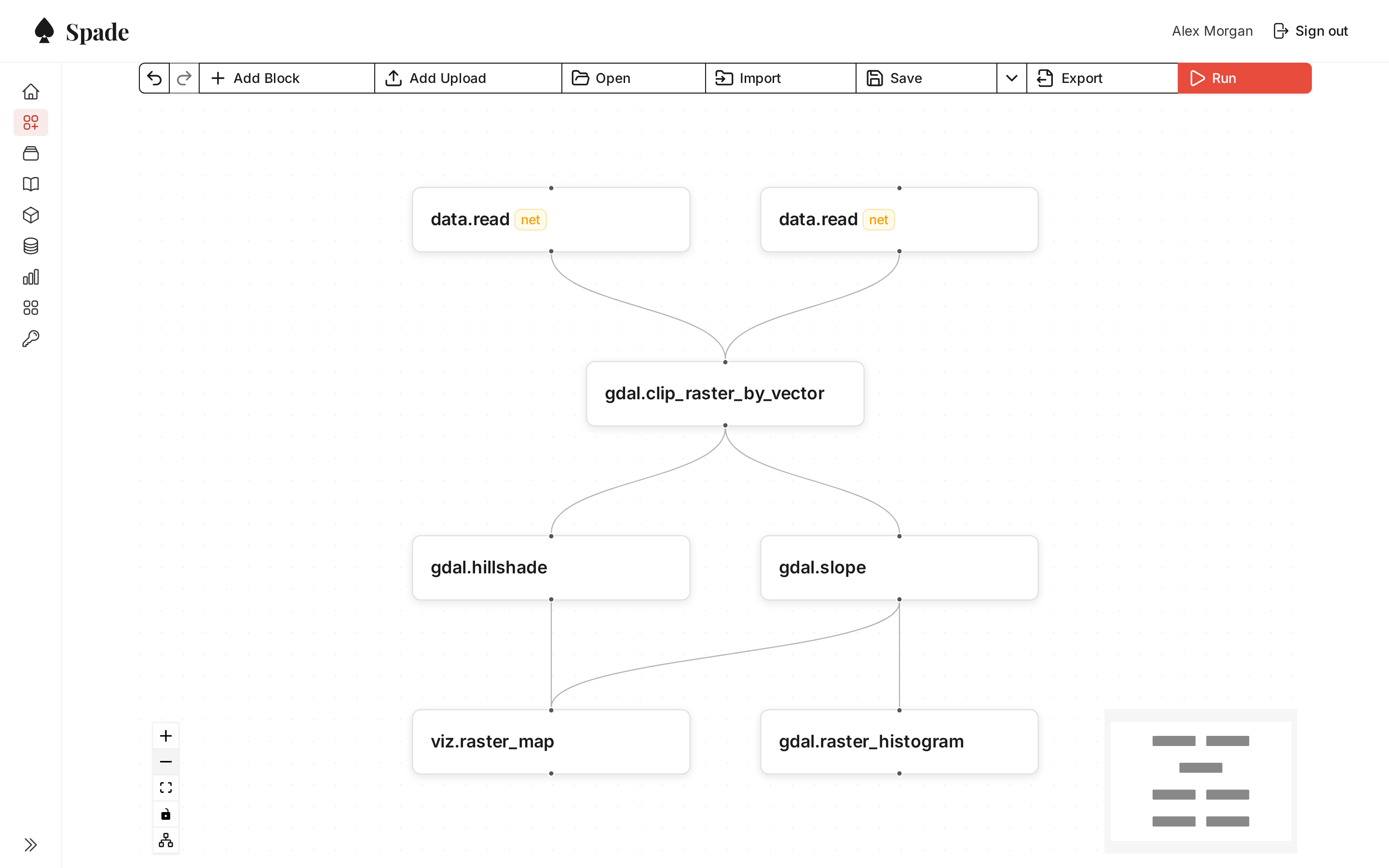
- Wiring that works itself out. Connect two blocks and the editor matches outputs to inputs by type. When more than one match fits, it asks, and shows each input's and output's description so the choice is an informed one.
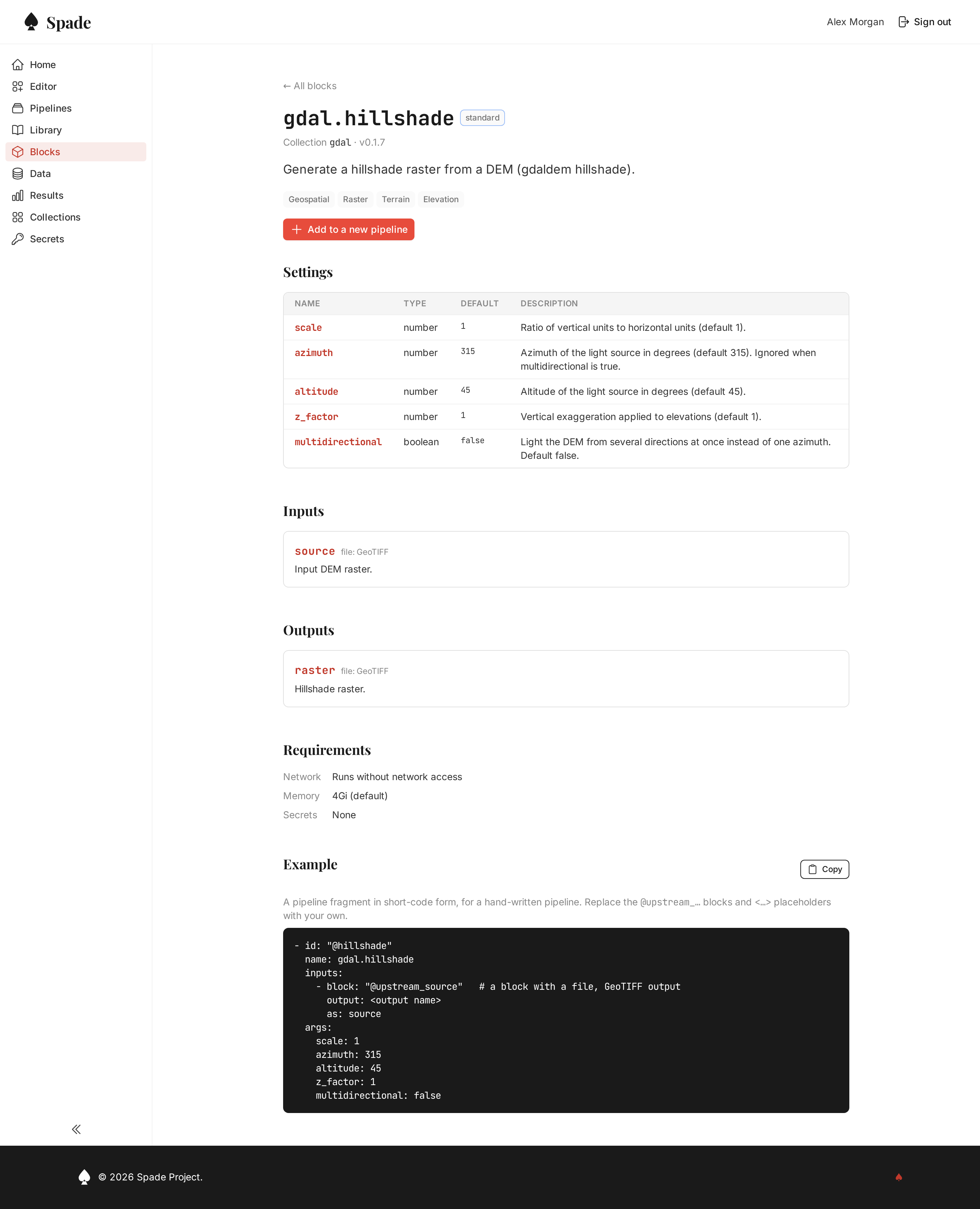
- Settings as forms. Each block's arguments appear as a form built from its manifest, with defaults, allowed values and descriptions, plus a picker for any secrets it needs.
- Problems before you run. Missing arguments and unresolved connections are listed as you build. When you press Run, the pipeline is checked against the real block definitions before anything is queued.
- Undo, arrange, import and export. Lay a pipeline out by dependency in one click, undo mistakes, and move between the canvas and YAML in either direction.
Find the right block
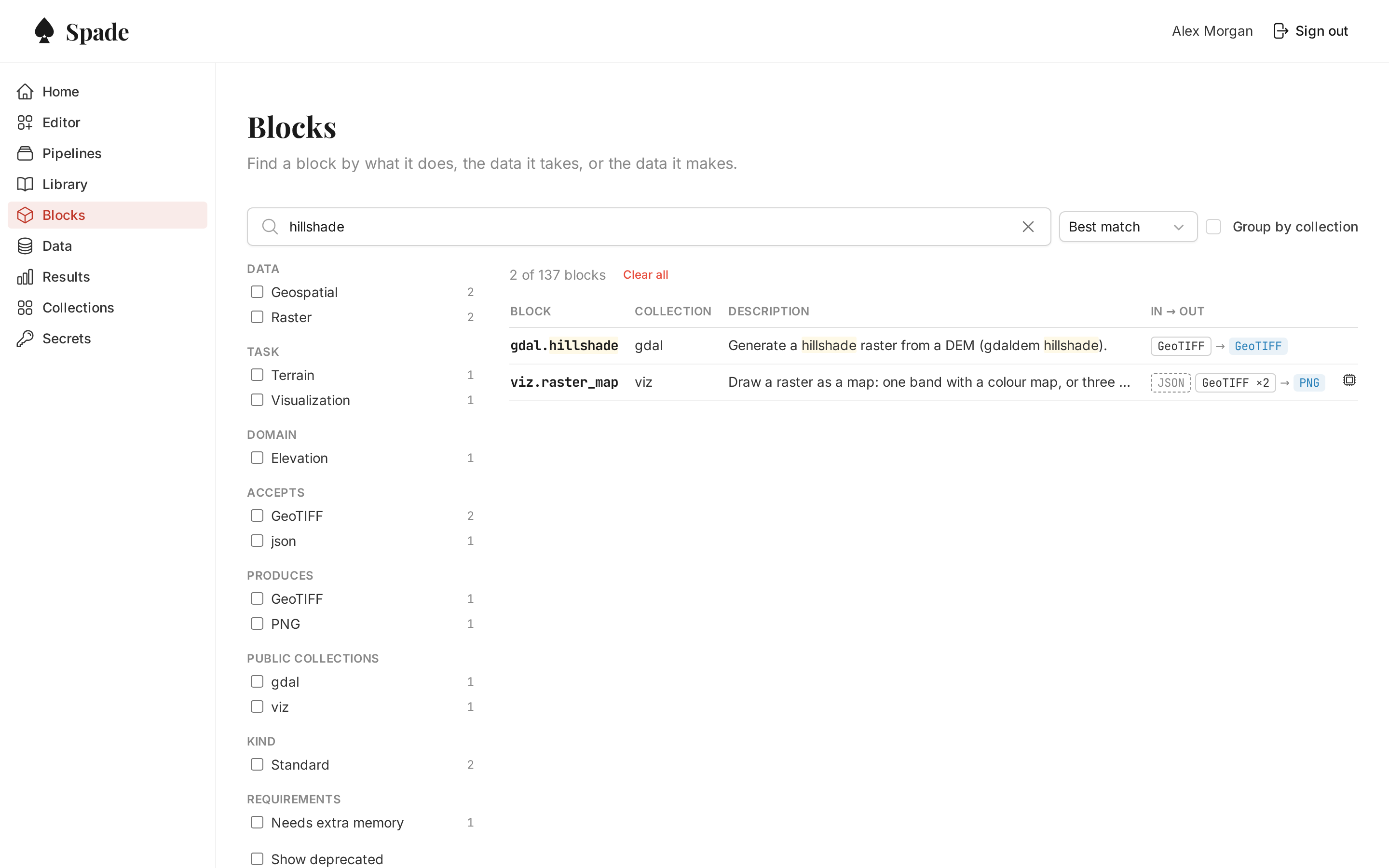
The catalogue is searchable by name, description, tags, and the formats a block accepts and produces. Searching for crop also finds clip, and searching for LiDAR also finds point cloud. Filters narrow by data type, task, collection, format and requirements, and the whole view lives in the URL, so a filtered list can be shared as a link.
Run it and see what came out
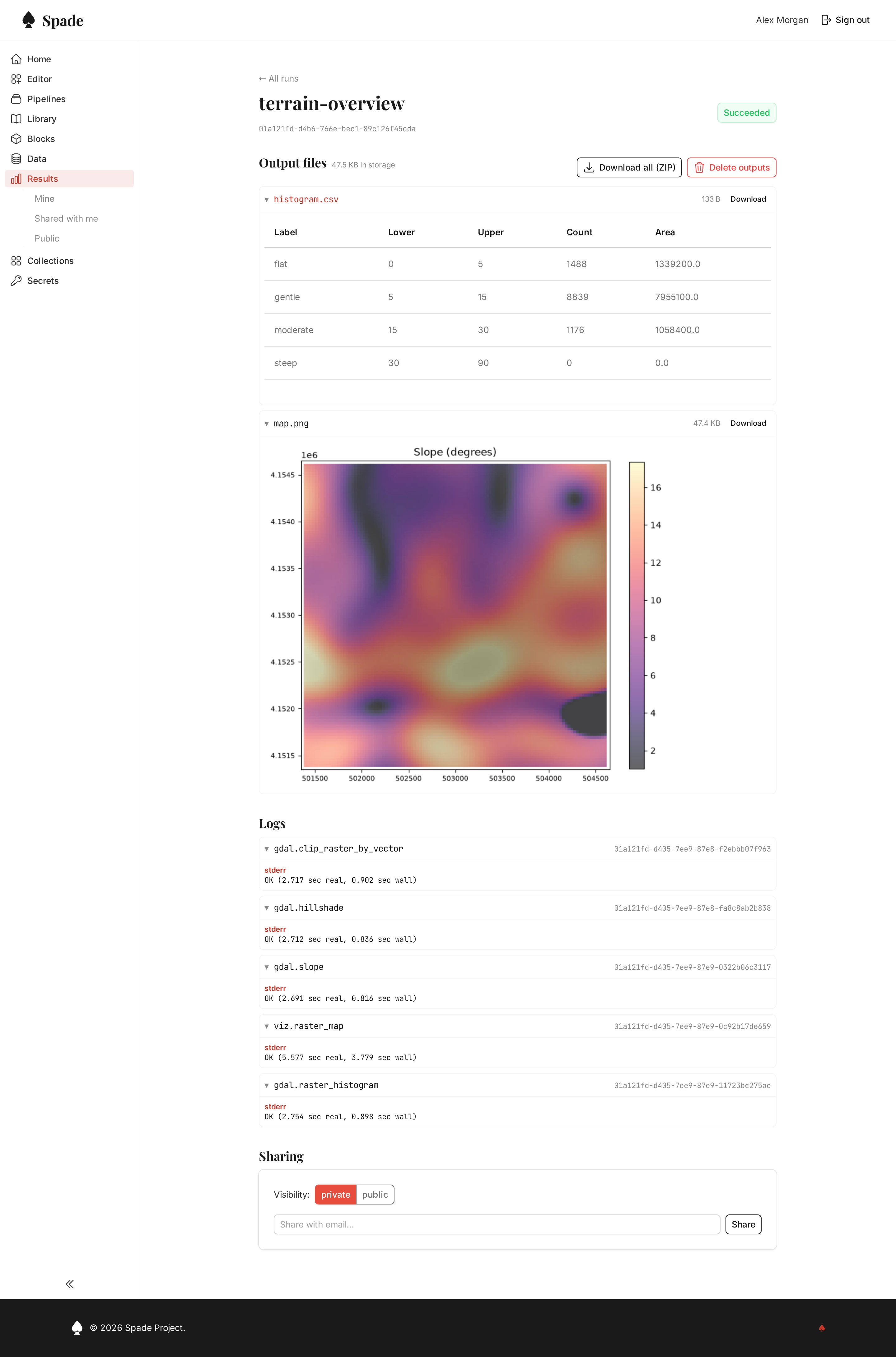
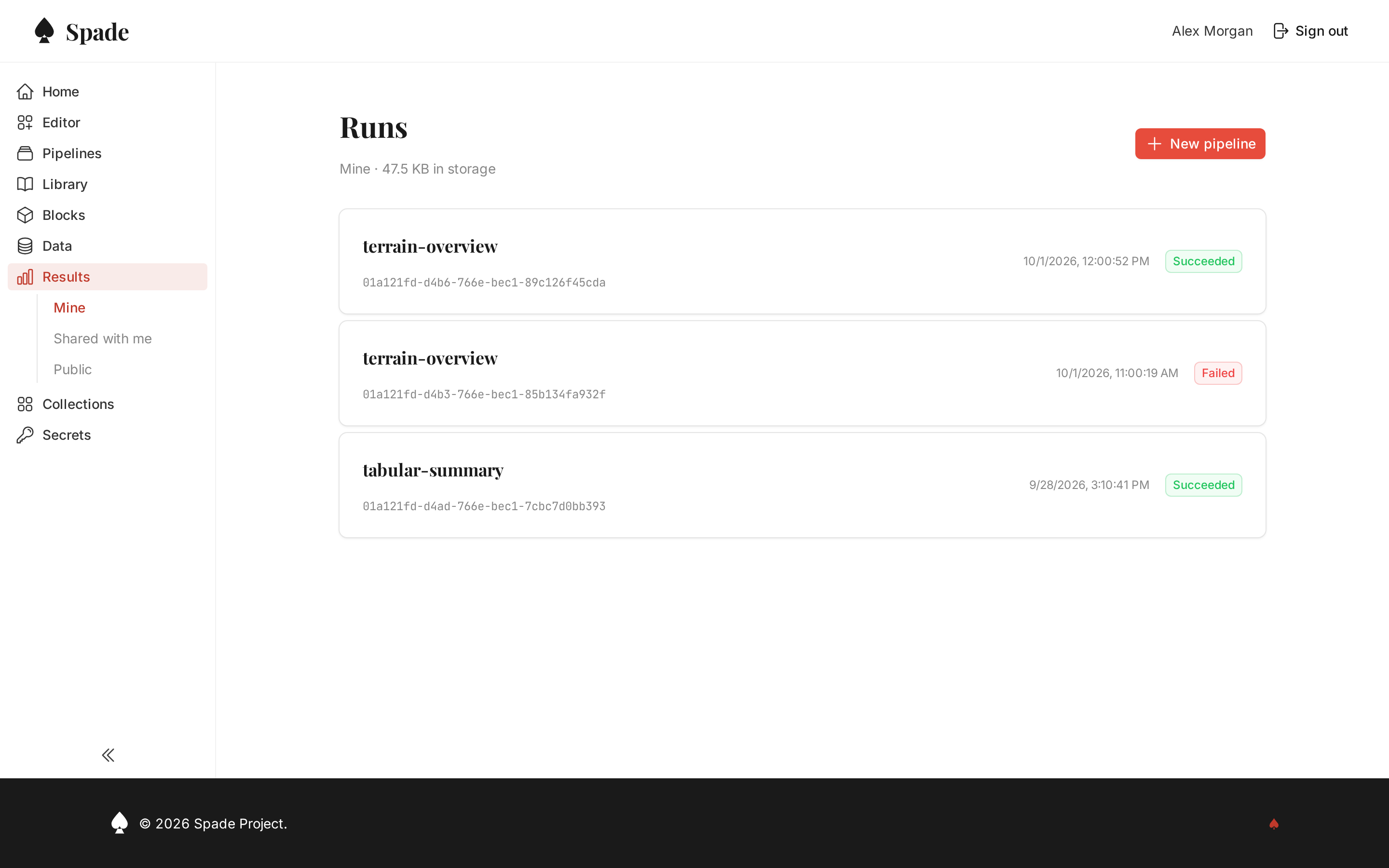
Runs execute in the cloud, in parallel where the pipeline allows. When one finishes:
- Outputs preview in place. Images, tables, charts and reports open on the run's page. Every file downloads, singly or as a ZIP.
- Logs by block. Each block's output is listed under the block that wrote it, so a failure points straight at its cause.
- Storage you can see. The page shows what a run's outputs take up, and the owner can delete them once they are no longer needed.
Bring your own data
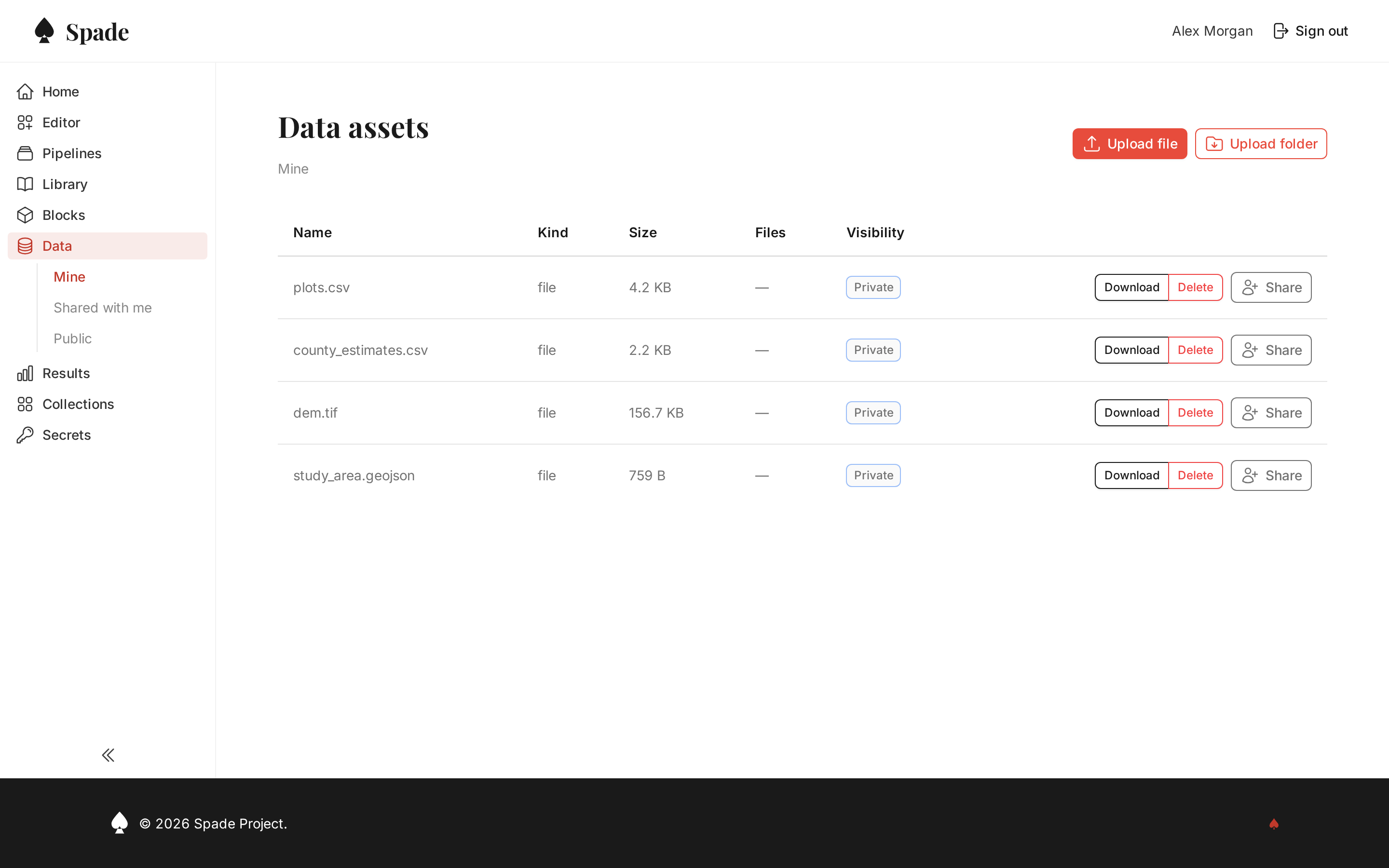
Upload files or whole folders, including large geospatial ones, and use them in pipelines like any other input. An interrupted folder upload can be resumed. Data is shared without uploading it again.
Share and reuse
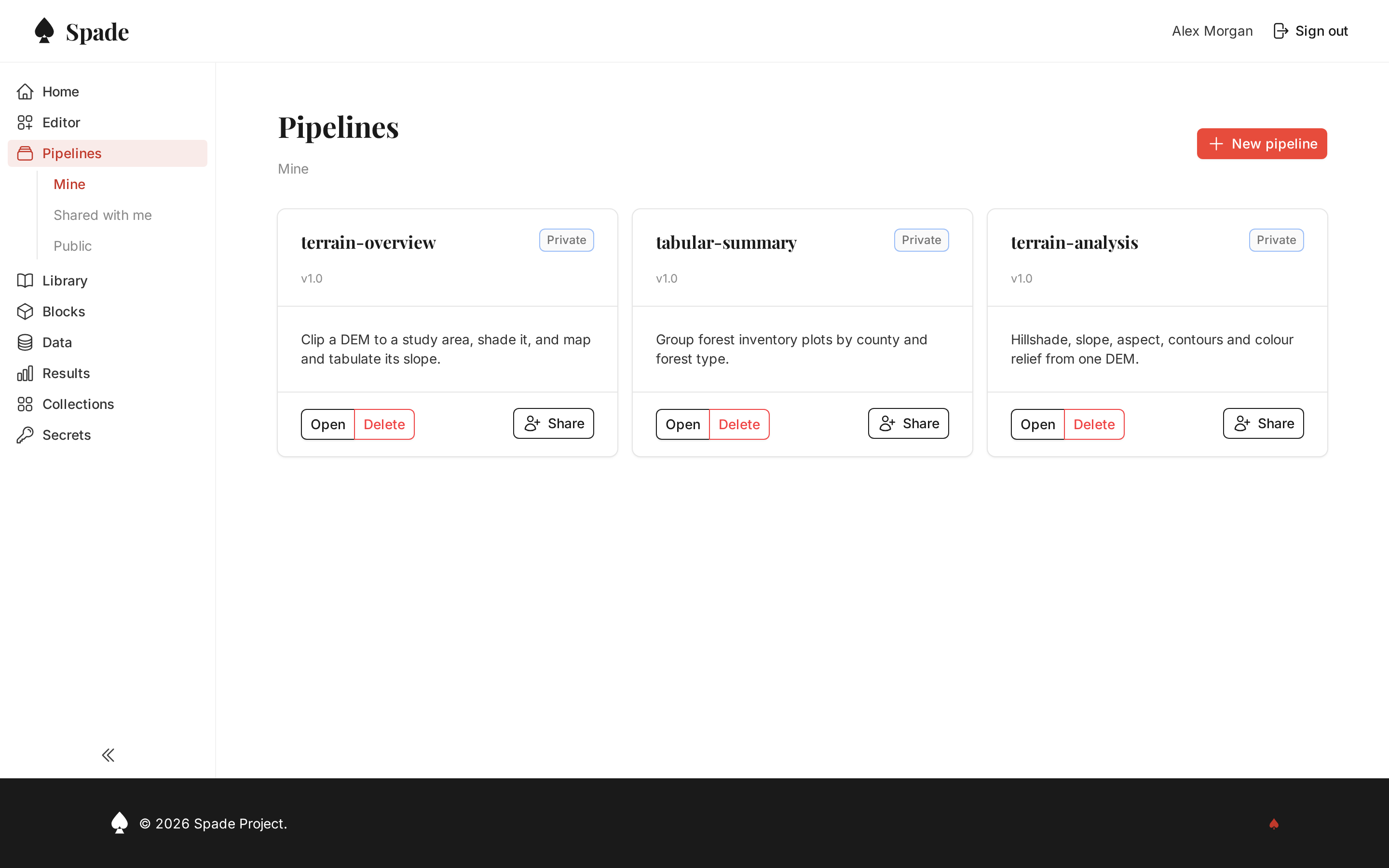
Pipelines, results and data can each be kept private, shared with named colleagues by email, or made public. A public pipeline appears in the library for anyone to open and run. Collections of blocks can be private too, and shared with the people who need them.
Prefer to just ask?
An AI assistant connected to Spade can find blocks, draft a pipeline, check it and run it for you, and every run it starts shows up here.
Prefer the terminal?
The command-line interface is the developer side of Spade: write blocks, run pipelines locally, and publish collections. The two share one pipeline format: a pipeline exported from the editor runs with spade run, and one written by hand imports onto the canvas.